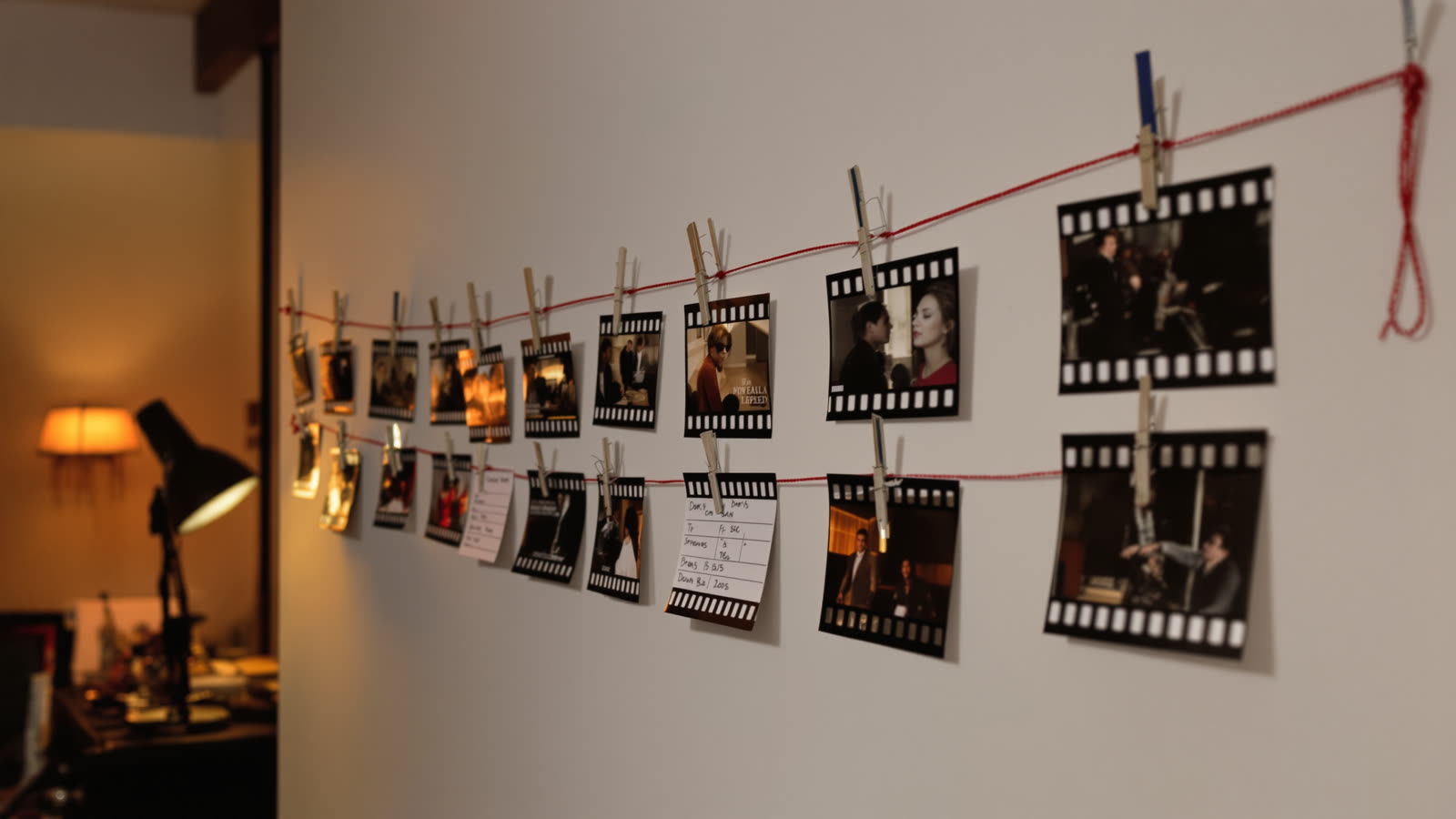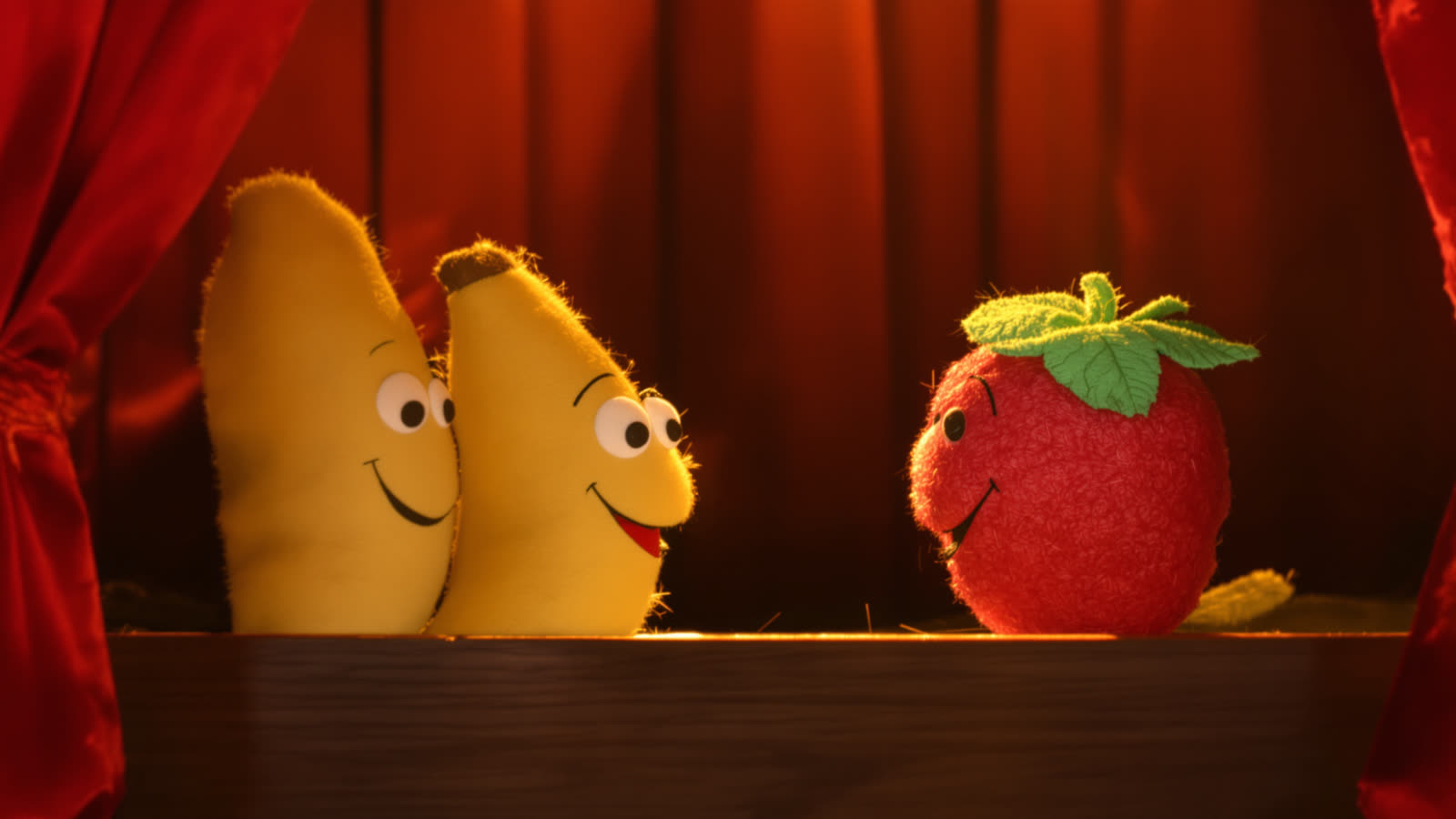
Two characters, one short exchange. It's the oldest format on social video, and it used to be the hardest thing to get out of an AI video model. You described a banana and a raspberry, the model drew whoever it felt like, and the lines went to the wrong fruit.
@mentions in Skitify fix that. You attach a picture of each character, give each one a name in the prompt with @, and Skitify tells the model exactly which picture you mean every time a name comes up.
How it works
- Press + in the composer and choose References. Add a photo for each character, or pick a saved object on the Objects tab.
- Type @ in the prompt. Skitify lists everything you attached: @image1, @image2 and your objects by their names.
- Pick one and keep writing. Mentions are highlighted, so you can see at a glance which words point at a picture.
That's the whole trick. A prompt can now read like a tiny script:
@banana: "Hey, how's it going?" @raspberry: "Not bad. Did you see the size of that blender?" Both laugh, slow push-in, warm kitchen light.
What happens behind the scenes
Every model reads references its own way. Seedance expects [Image1], Kling 3.0 Omni has its own template, and most other models understand plain words like "image 1". You don't need to remember any of it. Skitify keeps your prompt exactly as you wrote it and translates each @name for the model you picked when the video is sent. If an object has several photos, all of them go along with its name, so the character keeps its face from every angle.
Tips from our own tests
- One picture per character works, three are better. Save recurring characters as objects with a front, a side and a three-quarter photo.
- Keep lines short. Five to eight words per line fit a 5 second clip. Longer dialogue needs a longer clip or a second scene.
- Say who acts, not only who speaks. "@raspberry rolls her eyes" gives the model something to animate between the lines.
- Turn sound on when the model supports it. Seedance and Kling can voice the lines themselves.
Mentions only point at things that are attached. If you type @ and the name you want isn't there, attach the picture or object first and try again.